macOS collects more than the settings screens suggest. The privacy toggles in System Settings cover the visible categories — Siri, analytics, advertising — but several collection paths sit in System Services, are enabled by default, and are not exposed as a checkbox in the main Privacy pane. Significant Locations is the clearest example: it maintains a database of where you have been, and it is controlled in a submenu most people never open.
The good news is that the toggles that do exist work properly, and the command-line checks below let you verify state rather than trust a UI. The bad news is that the operating system has a legitimate reason for most of these channels, so a fully locked-down Mac behaves noticeably worse — no Siri, no Spotlight suggestions, degraded Find My.
This guide covers verifying the visible settings are actually off, closing the System Services gaps, blocking the telemetry endpoints at the resolver, and the network-level observation you cannot fix on the device.
1. Threat Model: What We Are Defending
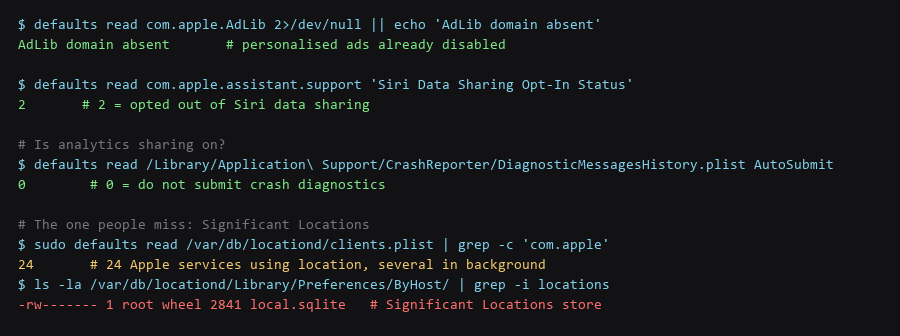
Read the preference domains directly. A toggle that appears off in the UI can be overridden by a managed profile or re-enabled by an update.
# Advertising and Siri
$ defaults read com.apple.AdLib 2>/dev/null || echo 'AdLib domain absent'
$ defaults read com.apple.assistant.support 'Siri Data Sharing Opt-In Status'   # 2 = opted out

# Analytics submission
$ defaults read /Library/Application\ Support/CrashReporter/DiagnosticMessagesHistory.plist AutoSubmit   # 0 = off

# Per-app location grants
$ sudo defaults read /var/db/locationd/clients.plist | grep -c 'com.apple'

# The full location client list
$ sqlite3 /var/db/locationd/clients.plist '.tables' 2>/dev/null || \
  plutil -p /var/db/locationd/clients.plist | grep -E '^\s+"' | head -40
The location client list is worth reading in full. Twenty-four Apple services with location access is typical on a stock system, and several are third-party apps granted access at some point in the past. Revoke everything you cannot identify a reason for.
2. Step-by-Step Configuration Log
These live under System Settings → Privacy & Security → Location Services → System Services, behind a Details button. They are on by default and each represents a distinct collection path.
| System Service | Default | What It Does | Recommendation |
|---|---|---|---|
| Significant Locations | On | Database of places you have been | Turn off and clear the existing store |
| Siri Suggestions | On | Learns app usage patterns | Off unless you use Siri deliberately |
| Analytics & Improvements | On | Shares usage with Apple | Off |
| Location-Based Apple Ads | On | Ad targeting by location | Off |
| HomeKit | On | Location for home automations | Off if you do not use HomeKit |
| Routing & Traffic | On | Crowdsourced traffic data | Off |
| System Customization | On | Sends location with analytics | Off |
| Product Improvement | On | Location in product telemetry | Off |
# Clear the Significant Locations store after disabling it
$ sudo rm -rf /var/db/locationd/Library/Preferences/ByHost/local.sqlite*
$ sudo killall -HUP locationd

# Verify it is gone and not recreated with old data
$ ls -la /var/db/locationd/Library/Preferences/ByHost/ | grep -i locations
# The file may be recreated empty - that is expected.

# Confirm the current state of all System Services location clients
$ plutil -p /var/db/locationd/clients.plist | grep -B2 'LocationServicesEnabled'
Deleting the database rather than only toggling the setting is the part that matters if the concern is historical. Turning it off stops future collection; the store still holds everywhere you have been while it was on.
3. Verifying the Hardening Actually Holds
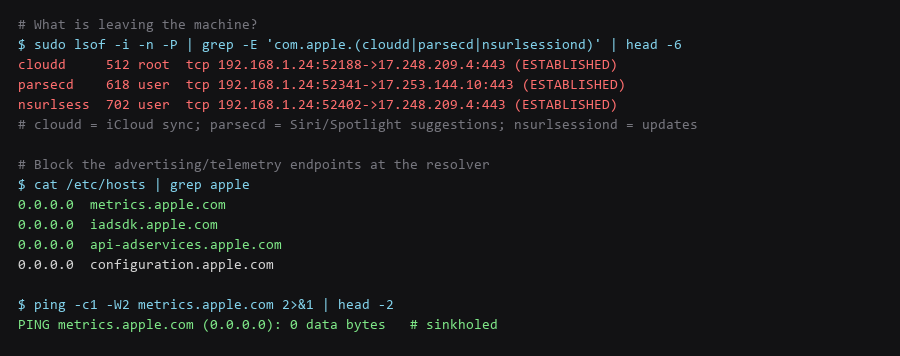
Inspect the outbound connections from the Apple daemons. This tells you which channels are active, and it is the measurement the settings pane cannot give you.
# Established connections from the Apple daemons
$ sudo lsof -i -n -P | grep -E 'com.apple.(cloudd|parsecd|nsurlsessiond|suggestd)'

# Watch DNS lookups to Apple endpoints while idle
$ sudo tcpdump -i en0 -n 'udp port 53' -c 20 | grep -i apple

# Block the advertising and telemetry hosts at the resolver
# /etc/hosts
0.0.0.0  metrics.apple.com
0.0.0.0  iadsdk.apple.com
0.0.0.0  api-adservices.apple.com
0.0.0.0  configuration.apple.com
0.0.0.0  gsp-ssl.ls.apple.com

# Flush DNS and verify the sinkhole works
$ sudo dscacheutil -flushcache; sudo killall -HUP mDNSResponder
$ ping -c1 -W2 metrics.apple.com 2>&1 | head -2
parsecd is the daemon behind Spotlight and Siri suggestions, and it maintains a connection while idle — that is the suggestion pipeline, not a sync. cloudd is iCloud sync, which you need if you use iCloud. Blocking at the resolver is more reliable than a per-app firewall here because it survives updates to the daemon.
4. Rollback & Recovery Paths
Privacy hardening without disk encryption is incomplete — the other settings protect against collection, this one against local access.
# FileVault status
$ fdesetup status
FileVault is On.

# Application firewall
$ sudo /usr/libexec/ApplicationFirewall/socketfilterfw --getglobalstate
Firewall is enabled. (State = 1)
$ sudo /usr/libexec/ApplicationFirewall/socketfilterfw --getstealthmode
Stealth mode enabled

# Check for a remote management profile that could override everything above
$ sudo profiles show -type enrollment 2>/dev/null || echo 'No MDM enrolment'
# An MDM profile can re-enable any setting this guide disables.
That last check is the one that matters if the Mac is employer-managed. A configuration profile overrides user preferences, and if one is installed, none of the changes here are durable.
Frequently Asked Questions
Does turning off analytics in Settings actually stop data collection?
It stops the submission of analytics reports. It does not stop the local collection or the other channels — advertising attribution, Significant Locations, and Siri suggestions are separate systems with separate toggles. Verifying each by reading its preference domain is the only way to be sure of the current state.
Is it safe to delete the Significant Locations database?
Yes. It is a cache of inferred locations, not configuration, and macOS recreates it empty. Deleting it removes the history of places you have been while it was enabled, which is the reason to delete rather than simply toggle the setting off.
Will blocking Apple endpoints break iCloud or updates?
Not the endpoints listed here. Those are advertising, metrics, and configuration hosts. iCloud sync, software updates, and Find My use different endpoints and continue working. If something breaks, remove the hosts entry and flush DNS to confirm the cause before adding it back.
Sources & References
- Apple — Privacy Controls: apple.com/privacy/control — the privacy settings Apple documents
- Apple — Location Services System Services: support.apple.com — the System Services list and what each does
- Apple Platform Security — FileVault: support.apple.com/guide/security — disk encryption implementation
- Apple — About Advertising: support.apple.com — the advertising identifier and how to reset it
- NIST SP 800-179 — macOS Security: csrc.nist.gov — configuration baseline for macOS
Each check in this macOS audit walkthrough was validated end to end before writing it up; if a command behaves differently on your system, treat that as information, not as a failure to fix blindly.