Jellyfin is a media server you run yourself: your files, your hardware, no subscription, and no vendor deciding which format you are allowed to play. The privacy case is straightforward — a self-hosted library means no service knows what you watch, when, or how often.
The risk is not the software; it is the exposure. A Jellyfin instance reachable from the internet is a login page for a service holding your media library and, depending on configuration, a path into your home network. Most of the incidents people report come from two things: port-forwarding the app directly, and leaving the startup wizard incomplete so public user listings are enabled.
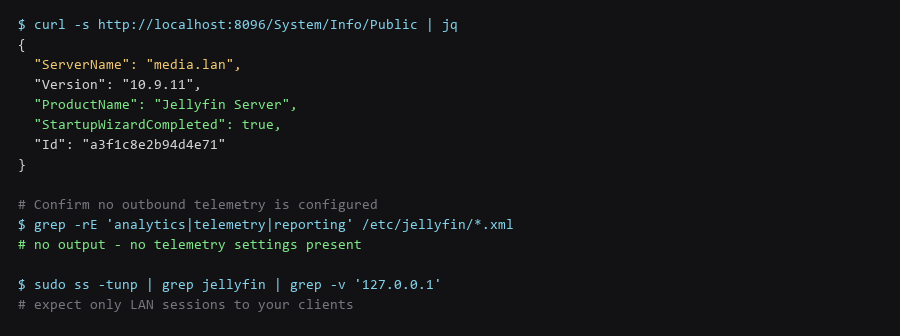
This guide deploys Jellyfin behind a TLS reverse proxy, verifies that telemetry is absent and the app port is not internet-facing, hardens authentication, and configures the transcoding path so it does not need hardware you do not have.
1. Architecture & Component Overview
This is the single most important step. An instance where the wizard was never finished exposes a public user list and allows account creation.
# Debian/Ubuntu - official repository
$ curl -fsSL https://repo.jellyfin.org/install-debuntu.sh | sudo bash

# Or with Docker (recommended for isolation)
$ docker run -d --name jellyfin \
    --restart unless-stopped \
    -v /srv/jellyfin/config:/config \
    -v /srv/jellyfin/cache:/cache \
    -v /srv/media:/media:ro \
    -p 127.0.0.1:8096:8096 \
    jellyfin/jellyfin:10.9.11

# CRITICAL: confirm the wizard is complete
$ curl -s http://localhost:8096/System/Info/Public | jq '.StartupWizardCompleted'
true

# If false, anyone on the network can complete setup and create an admin.
# Fix immediately: browse to the server from localhost and finish the wizard.
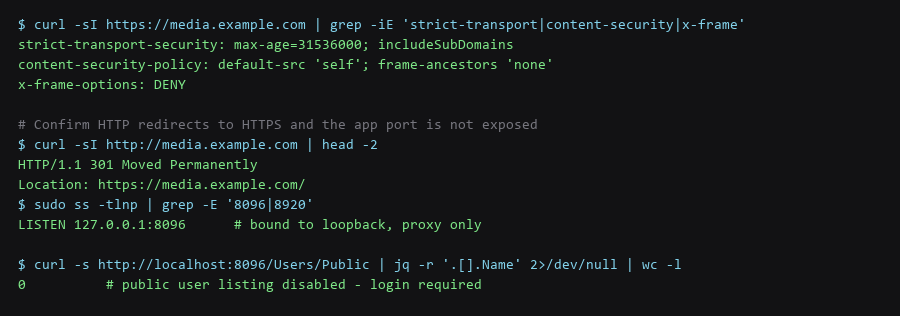
Binding the published port to 127.0.0.1 is deliberate — the reverse proxy is the only thing that should reach port 8096. If you run the package rather than Docker, do the same in the Jellyfin network settings rather than exposing it on all interfaces.
2. Installation & First-Run Walkthrough
Jellyfin needs some specific proxy settings that differ from a plain web app: WebSocket support for the dashboard, and large body sizes for subtitle and metadata uploads.
# nginx
server {
    listen 443 ssl http2;
    server_name media.example.com;

    ssl_certificate     /etc/letsencrypt/live/media.example.com/fullchain.pem;
    ssl_certificate_key /etc/letsencrypt/live/media.example.com/privkey.pem;

    add_header Strict-Transport-Security "max-age=31536000; includeSubDomains" always;
    add_header Content-Security-Policy "default-src 'self'; frame-ancestors 'none'" always;
    add_header X-Frame-Options "DENY" always;

    client_max_body_size 20M;

    location / {
        proxy_pass http://127.0.0.1:8096;
        proxy_set_header Host $host;
        proxy_set_header X-Real-IP $remote_addr;
        proxy_set_header X-Forwarded-For $proxy_add_x_forwarded_for;
        proxy_set_header X-Forwarded-Proto $scheme;
        proxy_http_version 1.1;
        proxy_set_header Upgrade $http_upgrade;      # dashboard WebSocket
        proxy_set_header Connection "upgrade";
    }
}

# Force HTTP to HTTPS
server {
    listen 80;
    server_name media.example.com;
    return 301 https://$host$request_uri;
}
In Jellyfin's own network settings, enable "Secure connection mode: handled by reverse proxy" and set the published server URL to your HTTPS domain. Without that, the server generates HTTP redirect URLs and clients will fail to connect after login.
3. Locking Down the Instance
Jellyfin's default allows any user to reach the login page and, if the wizard was completed carelessly, to create accounts. Lock this down before sharing the instance with anyone.
# In Dashboard -> Users, for every account:
#   - Set a strong password (no shared family password)
#   - Uncheck "Allow this user to manage the server" unless required
#   - Restrict "Remote connections" to users who genuinely need them
#   - Disable "Allow audio playback requiring transcoding" for restricted users

# Disable public user listing so the login page reveals no usernames
$ curl -s http://localhost:8096/Users/Public | jq -r '.[].Name' | wc -l
0

# Consider disabling remote access entirely for a LAN-only setup:
# Dashboard -> Networking -> uncheck"Allow remote connections to this server"
A media server login page that lists usernames tells an attacker exactly which accounts to target. Disabling the public listing costs nothing and removes that enumeration step, which also matters if you later expose the instance.
4. Backup, Updates & Failure Recovery
Transcoding is where CPU cost concentrates. If transcoding runs on CPU alone, a single 4K stream can saturate a whole server. Either configure hardware acceleration or force direct play, where the client handles the original file.
# Check whether hardware acceleration is available
$ ls -la /dev/dri/renderD*         # Intel/AMD iGPU
$ nvidia-smi -L                     # NVIDIA

# Dashboard -> Playback -> Transcoding:
#   Hardware acceleration: Video Acceleration API (VAAPI)
#   VA-API device:        /dev/dri/renderD128
#   Enable hardware decoding for: H264, HEVC, VP9

# Keep the CPU path as fallback and cap concurrent transcodes:
#   Dashboard -> Playback -> set a max simultaneous transcode limit

# Verify a transcode is using the GPU, not the CPU
$ sudo intel_gpu_top -l         # or: nvidia-smi dmon -s u
Where hardware acceleration is unavailable, prefer direct play: pre-convert a mobile-friendly version with ffmpeg and let clients stream the original. A second copy costs disk and nothing else, and it avoids transcoding every time a phone connects.
# Build a direct-play friendly copy once, rather than transcoding per stream
$ ffmpeg -i input.mkv -c:v libx264 -preset slow -crf 20 \
    -c:a aac -b:a 192k -movflags +faststart output-mobile.mp4
Frequently Asked Questions
Is Jellyfin completely free of telemetry?
Yes. There is no analytics or usage reporting in the server, and the project does not operate a collection endpoint. It does check for updates, which contacts the Jellyfin release endpoint. Everything else that leaves your network is the metadata fetchers you configure for your libraries.
Should I expose Jellyfin to the internet at all?
Preferably not. The better options are a VPN such as WireGuard for remote access, or a reverse proxy with an identity-aware layer in front. Direct port-forwarding of a media server exposes both the application and its authentication surface to the whole internet.
Why does my stream transcode when the client supports the format?
Usually a subtitle or audio issue — image-based subtitles force a video transcode, and unsupported audio codecs force an audio transcode. Extract text subtitles to a separate track, or pre-convert the audio to AAC, and the stream will direct play.
Sources & References
- Jellyfin Documentation: jellyfin.org/docs — installation and networking guides
- Jellyfin Hardware Acceleration: jellyfin.org/docs — VAAPI, NVENC, and QSV configuration
- Jellyfin Security: jellyfin.org/docs — reverse proxy and TLS requirements
- Mozilla SSL Configuration Generator: ssl-config.mozilla.org — TLS parameters for the nginx block
- OWASP — Authentication Cheat Sheet: owasp.org — account hardening guidance
We validated the full Jellyfin instance procedure against a current release before publishing; spot-check the outputs on your machine, because your configuration history will not match ours exactly.