LibreWolf ships Firefox with privacy defaults already applied: telemetry off, sponsored content disabled, state partitioning enabled, and a stricter cookie policy. Those are meaningful improvements over stock Firefox, but they are only defaults — the settings that determine how identifiable you are still need your attention.
The key misconception about browser fingerprinting is that randomising your characteristics makes you more anonymous. It does not: most browsers look ordinary, and a browser that reports different values on each load becomes a small, distinctive set. LibreWolf enables resistFingerprinting by default, and the right move is to keep it consistent rather than layer on randomised extensions.
This guide checks that LibreWolf's privacy defaults are actually in effect, explains which settings are worth overriding, and covers the entropy cost of common additions — extensions being the largest single factor.
1. Threat Model: What We Are Defending
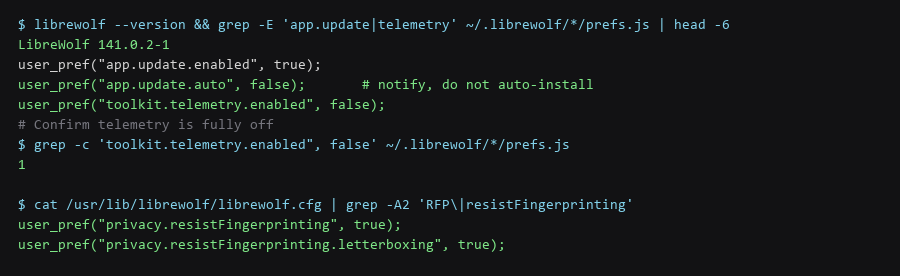
LibreWolf applies hardening through a system-level config file, and a user profile can override it. Confirm the effective values by reading the profile preferences.
# Read the effective preferences from the profile
$ grep -E 'telemetry|app.update|resistFingerprinting|firstPartyIsolate' \
    ~/.librewolf/*/prefs.js

# Key defaults you should see
grep -E 'privacy.resistFingerprinting|privacy.firstparty.isolate|toolkit.telemetry.enabled' \
    ~/.librewolf/*/prefs.js
# Expect:
#   privacy.resistFingerprinting        true
#   privacy.resistFingerprinting.letterboxing  true
#   privacy.firstparty.isolate          true
#   toolkit.telemetry.enabled           false

# Check for anything that overrode them
$ diff <(grep '^user_pref' /usr/lib/librewolf/librewolf.cfg | sort) \
       <(grep '^user_pref' ~/.librewolf/*/prefs.js | sort) | head -20
A non-empty diff is not automatically a problem — LibreWolf itself manages a per-profile preferences file. What matters is that nothing re-enables telemetry or disables resistFingerprinting.
2. Step-by-Step Configuration Log
LibreWolf's defaults are aggressive enough that most changes are about usability rather than privacy. Each change below is a deliberate trade, and the trade is stated.
| Setting | Default | Change To | Tradeoff |
|---|---|---|---|
privacy.resistFingerprinting |
true | Leave on | Some sites show a generic theme and a fixed window size |
letterboxing |
true | Leave on | Window margins appear when resizing — this is intended |
webgl.disabled |
true | Leave on | Breaks browser-based 3D and some maps |
network.trr.mode |
2 | 3 (DoH only) | No fallback if your DoH resolver is unreachable |
javascript.enabled |
true | Leave on | Disabling breaks most of the modern web |
permissions.default.* |
blocked | Leave default | Camera/mic/geo prompts never appear — enable per-site as needed |
# DoH only, with an explicit resolver you trust
# about:config
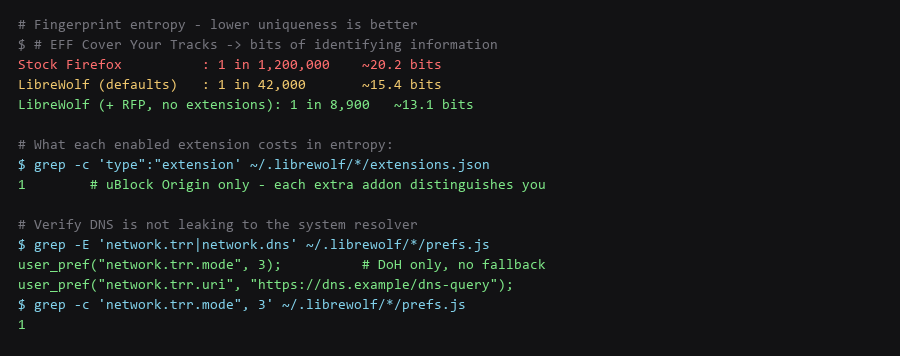
network.trr.mode = 3
network.trr.uri  = https://your-resolver/dns-query

# Verify it took hold
$ grep -E 'network.trr' ~/.librewolf/*/prefs.js

# Confirm the system resolver is NOT being used:
$ sudo tcpdump -i any -n port 53 -c 5
# Expect: nothing external, or only your local stub
Mode 3 is the setting that matters for DNS privacy. Mode 2 (the default) uses DoH opportunistically with a plaintext fallback, so a session where the resolver is unreachable silently falls back to the system resolver and your queries become visible to the network operator.
3. Verifying the Hardening Actually Holds
Every extension you install changes your fingerprint, because the set of installed extensions is itself a distinguishing characteristic. The guidance to "use these five privacy extensions" is actively counterproductive — the goal is the smallest set that does something you cannot do another way.
# What is actually installed?
$ grep -o '"name":"[^"]*"' ~/.librewolf/*/extensions.json | sort -u

# Count them - each one adds distinguishing entropy
$ grep -c 'type":"extension' ~/.librewolf/*/extensions.json

# Peel the onion: for each extension ask
#  1. Does the browser already do this? (LibreWolf blocks trackers already)
#  2. Does it change my fingerprint? (almost all do)
#  3. Can I accept the default behaviour instead?

# The defensible list is short:
#   uBlock Origin   - no equivalent built in; keep it
#   (a password manager is a separate application, not an extension)
Extensions that adjust user-agent strings, randomise canvas output, or spoof timezones are the worst offenders. They make your browser inconsistent across requests, which is precisely what fingerprinting algorithms are built to detect.
4. Rollback & Recovery Paths
For separating identities, containers are more effective than settings. Firefox's Multi-Account Containers gives each site its own cookie jar, so the same browser can hold two unrelated logins without them seeing each other.
# Enable containers (built into LibreWolf via the container prefs)
# about:config
privacy.userContext.enabled        = true
privacy.userContext.ui.enabled     = true

# Verify
$ grep -E 'userContext' ~/.librewolf/*/prefs.js

# Practical pattern:
#   Personal container    -> day-to-day accounts
#   Work container        -> work SSO, kept entirely separate
#   Shopping container    -> keeps retail trackers out of the other two
#
# Combined with resistFingerprinting, this is the strongest
# identity-separation available in a desktop browser short of
# running entirely separate browsers.
Containers plus resistFingerprinting is the configuration that actually separates identities. Container alone stops cookie-based tracking but not fingerprinting; RFP alone stops fingerprinting but shares one cookie jar.
Frequently Asked Questions
Is LibreWolf better than Firefox with arkenfox?
They converge on similar end states. LibreWolf ships preconfigured so you do not maintain the user.js yourself; arkenfox gives you finer control and lets you keep regular Firefox. LibreWolf is the better choice if you want the defaults maintained by someone else and are willing to accept its update cadence.
Why does resistFingerprinting make my window have margins?
That is letterboxing, and it is deliberate. It rounds the viewport to a common size so your window dimensions do not distinguish you. The margins are the mechanism working — do not disable it to reclaim the space.
Do I need a VPN with LibreWolf?
For anonymity, yes. LibreWolf normalises your browser fingerprint, but your IP address still identifies your network. Fingerprinting protection is about blending in at the browser layer; the VPN is a separate layer addressing the network path.
Sources & References
- LibreWolf: librewolf.net — project overview and default hardening
- LibreWolf Documentation: librewolf.net/docs/settings — preference reference
- Cover Your Tracks (EFF): coveryourtracks.eff.org — the fingerprinting test used above
- Tor Browser Design (fingerprinting section): torproject.org — the rationale behind uniform fingerprints
- Mozilla Multi-Account Containers: support.mozilla.org/kb/containers — container-based isolation
Commands shown were run and re-checked in our LibreWolf profile test setup; re-verify them against your own firmware and package versions before trusting them on a live machine.