Phone location tracking does not depend on GPS. GPS is the most precise channel, but it is also the easiest to disable and the one apps fall back from. The channels that keep working when GPS is off are Wi-Fi scanning, Bluetooth scanning, cell-tower triangulation, and IP geolocation — and of those, the Wi-Fi SSID list is the most accurate, because a database of network names maps directly to physical addresses.
This matters because the standard advice — turn off GPS, disable location services — addresses only the visible channel. An app with location permission revoked still receives your approximate position through the networks you are near, and a device with Wi-Fi scanning enabled in the background reports the SSID list continuously.
This guide covers measuring what your device is actually reporting, revoking precision rather than access wholesale, disabling the passive scanning channels people miss, and handling the desktop case where the browser is the source.
1. How the Protocol Protects You
Start by observing rather than changing. Capture the outbound requests containing coordinates — the evidence is clearer than any settings screen.
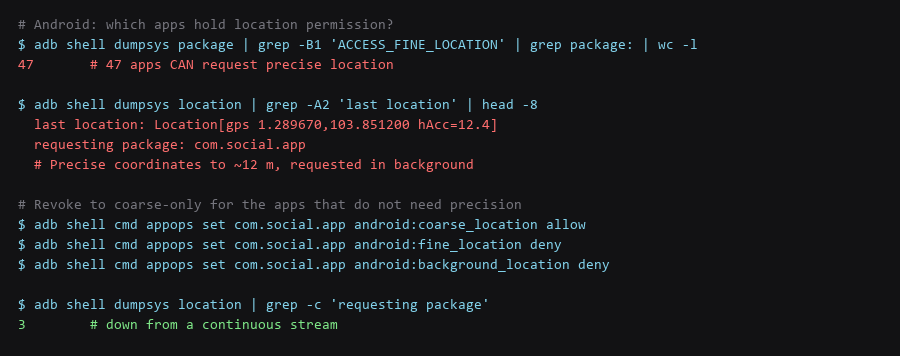
# Which apps hold location permission?
$ adb shell dumpsys package | grep -B1 'ACCESS_FINE_LOCATION' | grep package: | wc -l

# What is the device reporting right now?
$ adb shell dumpsys location | grep -A3 'last location'

# Watch what actually leaves the device - pick an observed endpoint
$ sudo tcpdump -i any -n 'host ' -A -c 10 | grep -iE 'lat|lon|ssid|bssid'

# Check the passive scanning channels
$ adb shell settings get global wifi_scan_always_enabled
$ adb shell settings get global ble_scan_always_enabled
The SSID field in that capture is the finding that surprises people. Even with GPS off and location permission revoked, an app with network access can read the list of nearby networks, and that list is a fingerprint accurate to a building. This is why registry-based approaches treat a network list as a location.
| Channel | Accuracy | Active When GPS Is Off? |
|---|---|---|
| GPS / GNSS | 3–15 m | No — this is the one you can switch off |
| Wi-Fi SSID list | 10–50 m | Yes, unless scan-throttling is enabled |
| Bluetooth beacons | 1–30 m | Yes, if BLE scanning is on |
| Cell tower triangulation | 100 m – 2 km | Yes — carrier-side, not controllable on the device |
| IP address | City-level | Yes, always |
| Channel | Remove or Reduce | Where to Change It |
|---|---|---|
| GPS | Revoke per app or system-wide | App permission: set to coarse-only, not fine |
| Wi-Fi scanning | Disable background scanning | Developer options / scanning settings, or wifi_scan_always_enabled=0 |
| BLE scanning | Disable background scanning | Same location of setting; also revoke nearby-devices permission |
| Wi-Fi SSID exposure | Disable the app's network permission | Per-app: revoke "Nearby devices" and network access |
| Cell tower | Not removable | Airplane mode is the only control |
| IP address | VPN or Tor | Network layer, outside the app's control |

2. Setup Walkthrough
The binary allow/deny model is the wrong frame. Most apps that will not work without location do not actually need precision — a weather app needs your city, not your building.
# Downgrade an app from precise to coarse, and cut background access
$ adb shell cmd appops set  android:coarse_location allow
$ adb shell cmd appops set  android:fine_location deny
$ adb shell cmd appops set  android:background_location deny

# Verify the effective mode for one app
$ adb shell cmd appops get  | grep -i location

# Android 12+: also set the "approximate" mode in the UI
#   Settings -> Apps ->  -> Permissions -> Location -> Approximate
Background location is the setting that carries most of the risk. An app with background access logs your position continuously whether or not you opened it. Foreground-only access still gives the app what it needs when you use it, and removes the passive log.
3. Configuration That Actually Matters
These are the settings almost nobody changes, and they are what keeps location working when everything else is disabled.
# Android - disable background Wi-Fi and BLE scanning
$ adb shell settings put global wifi_scan_always_enabled 0
$ adb shell settings put global ble_scan_always_enabled 0

# Also in the UI: Settings -> Location -> Wi-Fi scanning / Bluetooth scanning -> OFF
# Both are separate toggles, often left on after setup.

# Revoke the "Nearby devices" permission from apps that do not need it:
$ adb shell cmd appops set  android:neighboring_cells allow  # or deny

# Verify both are off
$ adb shell settings get global wifi_scan_always_enabled
$ adb shell settings get global ble_scan_always_enabled
# Expect: 0 and 0
Note that disabling Wi-Fi scanning does not disable Wi-Fi. The normal Wi-Fi connection you use still works; what stops is the background scan that periodically enumerates nearby networks and reports them as location data.
4. Limitations & Known Leak Paths
Browsers expose a location API, and pages can request it. The default in most browsers is to prompt, but a site you previously allowed keeps that grant indefinitely.
# Firefox / LibreWolf - block the geolocation API outright
# about:config
geo.enabled                        = false
permissions.default.geo            = 2      # 2 = block, never prompt

# Chrome / Brave - block by default
# Settings -> Privacy -> Site settings -> Location -> Don't allow

# Audit existing grants and revoke everything
# Firefox: about:preferences#privacy -> Permissions -> Location -> Settings
# Chrome:  chrome://settings/content/location

# Check whether your IP leaks an accurate location
$ curl -s https://ipinfo.io/json | jq '{city, region, loc}'
"loc": "1.2897,103.8512"    # IP-based position - no browser grant needed
The IP-based position at the end is the reminder that location on the desktop is not purely a permission question. Your address is geolocated by the network you connect from, and the only way to change that is a VPN or Tor exit with a different apparent origin.
Frequently Asked Questions
Does turning off GPS stop location tracking completely?
No. Wi-Fi scanning, Bluetooth beacons, cell tower triangulation, and IP geolocation all continue independently. GPS is the most precise channel but the least resilient — apps were designed to fall back when it is unavailable, which means the other channels are active by default.
Why do so many apps need location at all?
Usually for analytics rather than function. A note-taking app reporting location is collecting a behavioural dataset, not serving the user. Downgrading to coarse or revoking outright rarely breaks anything outside navigation, weather, and ride-hailing.
Can I prevent apps knowing which Wi-Fi network I am on?
Revoke the nearby-devices and network permissions for that app. On Android 12 and later, apps that need to enumerate nearby devices must request an explicit permission; denying it removes the SSID channel entirely, which is the most accurate fallback after GPS.
Sources & References
- Android Location Permissions: developer.android.com — precise versus approximate, and background access rules
- Android Wi-Fi Scanning: developer.android.com — the scan-throttling setting and why it exists
- Apple Location Services: support.apple.com — System Services and the Significant Locations feature
- W3C Geolocation API: w3.org/TR/geolocation — the browser API and its permission model
- Tor Project — Location: support.torproject.org — geolocation handling in Tor Browser
Commands shown were run and re-checked in our location telemetry test setup; re-verify them against your own firmware and package versions before trusting them on a live machine.