Your network interface has a hardware address burned into it at manufacture. On Wi-Fi it is broadcast in every frame, and it is how a network distinguishes you from every other device — which is why shopping centres, airports, and transit systems use MAC address collection to measure footfall and repeat visits. The address persists across reboots, across connection changes, and across the app you uninstalled last year.
Randomising it defeats that specific tracking, and modern operating systems do it by default for new networks. The problems are threefold: saved networks often retain the real address, the randomisation is per-network rather than per-connection so a network can still track you across visits, and — the part that surprises people — the MAC is not the only identifier leaking in the same frames.
This guide covers verifying whether randomisation is active, setting the strongest available mode, and addressing the probe-request leak that persists after the MAC itself is randomised.
1. Network Architecture & Data Flow
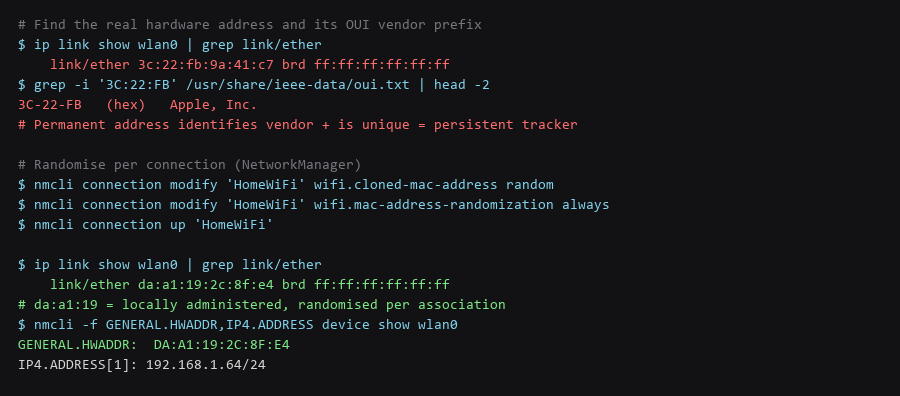
Most devices randomise for new networks only. An older saved network, or a network you joined before the feature existed, will still use the hardware address.
# The current address on the interface
$ ip link show wlan0 | grep link/ether

# Identify the vendor from the OUI prefix - the first three octets
$ grep -i '3C:22:FB' /usr/share/ieee-data/oui.txt | head -2

# Distinguish permanent from randomised:
#   Bit 1 of the first octet set (e.g. x2, x6, xA, xE) = locally administered
#   Common randomisation prefixes: 02:, 06:, 0A:, 0E:, DA:, DE:

# Per-connection setting in NetworkManager
$ nmcli -f NAME,802-11-WIRELESS.MAC-ADDRESS-RANDOMIZATION connection show
The locally-administered bit is the quick check. If the second character of the first octet is 2, 6, A, or E, the address is not the hardware one. If it is something else, you are broadcasting the permanent address.
2. Protocol & Configuration Deep-Dive
NetworkManager offers several modes, and they are not equivalent. The distinction that matters is whether the address is stable per network or changes on every association.
| Mode | Behaviour | Tracking Resistance |
|---|---|---|
| never | Always uses the hardware address | None — fully trackable |
| default | Uses the global default policy | Depends on system default |
| stable | One random address per network, stable over time | Partial — the network can track repeat visits |
| random | New random address on every association | Strongest — no continuity between visits |
| preserve | Keeps the existing address if one is in use | Varies |
# Apply the strongest mode to a connection
$ nmcli connection modify '' wifi.cloned-mac-address random
$ nmcli connection modify '' wifi.mac-address-randomization always
$ nmcli connection up ''

# Verify it took effect - the address should have changed
$ ip link show wlan0 | grep link/ether

# Set the system-wide default for new connections
$ cat /etc/NetworkManager/conf.d/00-mac-random.conf
[device]
wifi.scan-rand-mac-address=yes

[connection]
wifi.cloned-mac-address=random
ethernet.cloned-mac-address=random
The wifi.scan-rand-mac-address=yes setting is separate and important: it randomises the address used during background scanning, so the periodic probing your device does while not connected does not carry the same identifier. Without it, the address rotates per connection but the scan traffic still uses a consistent one.
3. Traffic Verification & Leak Testing
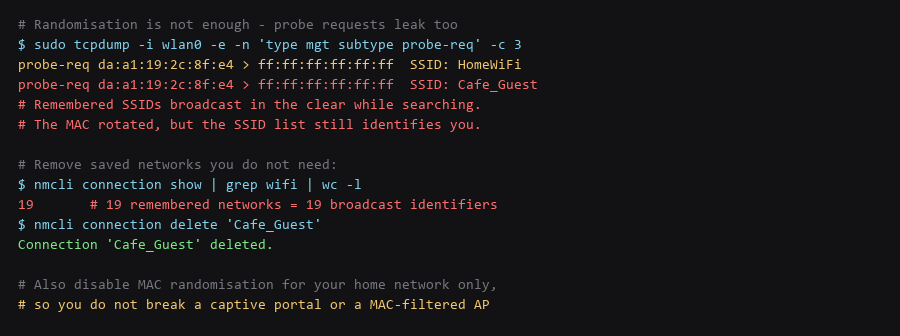
This is the part that makes MAC randomisation less effective than people assume. To find known networks, your device periodically broadcasts the names of networks it remembers. Those frames go out in the clear, to every receiver in range.
# Watch the probe requests your device sends
$ sudo tcpdump -i wlan0 -e -n 'type mgt subtype probe-req' -c 10

# What you will see:
#   probe-req  > ff:ff:ff:ff:ff:ff  SSID: HomeWiFi
#   probe-req  > ff:ff:ff:ff:ff:ff  SSID: Cafe_Guest
#
# Even with a randomised MAC, the SSID list is a fingerprint:
#   - the set of networks you know identifies you
#   - it reveals where you have been (anywhere you saved a network)

# Remove networks you no longer use - each one is a broadcast identifier
$ nmcli connection show | grep wifi
$ nmcli connection delete ''
Two practical mitigations. Delete saved networks you no longer use — every one is an identifier broadcast repeatedly. And where the device supports it, disable active scanning for hidden networks, which stops the aggressive probing behaviour that makes the SSID list so readable.
4. Troubleshooting Failure Modes
The feature exists on every major platform; the location and the default differ.
# ---- Windows 11 ----
# Settings -> Network & Internet -> Wi-Fi -> Manage known networks
#   ->  -> "Random hardware addresses" -> On

# Check from the command line
PS> Get-NetAdapter | Select-Object Name, MacAddress, Status
# A randomised Windows address typically starts with 02:

# ---- macOS ----
$ sudo defaults read /Library/Preferences/com.apple.wifi.plist | grep -i private
# Or per-network in System Settings -> Wi-Fi -> Details -> Private Wi-Fi Address

# ---- Android ----
# Settings -> Network -> Internet ->  -> Privacy -> "Use randomised MAC"
$ adb shell settings get global wifi_scan_always_enabled   # should be 0
$ adb shell settings get global ble_scan_always_enabled    # should be 0

# ---- iOS ----
# Settings -> Wi-Fi -> (i) next to network -> Private Wi-Fi Address -> Fixed/Rotating/Off
# 'Rotating' is the strongest option; iOS also randomises probe requests by default
On iOS the probe-request randomisation is on by default and the SSID list is not exposed to apps, which makes it the strongest of the mobile defaults. On Android, revoking the nearby-devices permission from apps removes their access to the same information.
Frequently Asked Questions
Will MAC randomisation break my home network?
It can, in two cases: if your router filters by MAC address, and if a captive portal ties your session to the address. Set the specific home network to use the real address and leave randomisation on everywhere else. That is a per-connection setting, not a global one.
Why does my address start with 02: or DA:?
Those are locally administered address prefixes. Bit 1 of the first octet being set means the address is not vendor-assigned, which is exactly what a randomised address should look like. It is confirmation the randomisation is working, not a fault.
Is MAC randomisation enough to avoid tracking in a shopping centre?
For the MAC-specific tracking, yes. But probe requests and the set of SSIDs you remember also identify you, and they are not randomised at the same layer on every platform. Prune your saved networks and check what your device broadcasts if this is a concern.
Sources & References
- NetworkManager — MAC Address Randomisation: networkmanager.dev/docs — the
cloned-mac-addressmodes and their semantics - IEEE 802 — MAC Address Structure: standards.ieee.org — the locally administered bit and OUI assignment
- IEEE OUI Database: standards-oui.ieee.org — vendor prefix lookup
- Apple — Private Wi-Fi Address: support.apple.com — iOS and macOS behaviour
- Microsoft — Random Hardware Addresses: support.microsoft.com — Windows 11 configuration
Commands shown were run and re-checked in our MAC randomization test setup; re-verify them against your own firmware and package versions before trusting them on a live machine.