On a recent deployment, a client sent us a laptop with a VeraCrypt-encrypted drive that appeared healthy in the GUI but failed to decrypt after a power loss during a Windows Update. The bootloader was intact, the volume header was not — a known edge case when the header lives on the same physical disk as the OS that updates it. That is the kind of failure that looks like corruption but is really a design choice buried three layers deep in the docs.
This guide covers VeraCrypt (cross-platform) and BitLocker (Windows) volume creation, hidden volume setup, and boot integrity verification. Every command below was tested on Windows 11 Pro (BitLocker), Ubuntu 24.04 (VeraCrypt CLI), and macOS 15 (Disk Utility check). No GUI steps are assumed — only terminal commands.
Before starting, confirm the drive is blank or backed up. VeraCrypt's --text mode is irreversible once the header is written — there is no undo. We recommend testing on a USB flash drive first to get comfortable with the recovery procedure.
1. How It Works: Design & Trade-offs
VeraCrypt CLI mode is non-interactive when you pass all parameters. The key risk is the random number source — /dev/urandom is acceptable for non-paranoid deployments, but /dev/random blocks until sufficient entropy is available. BitLocker is configured via manage-bde on Windows Pro and via Group Policy on Enterprise. Both require TPM 2.0 for hardware attestation.
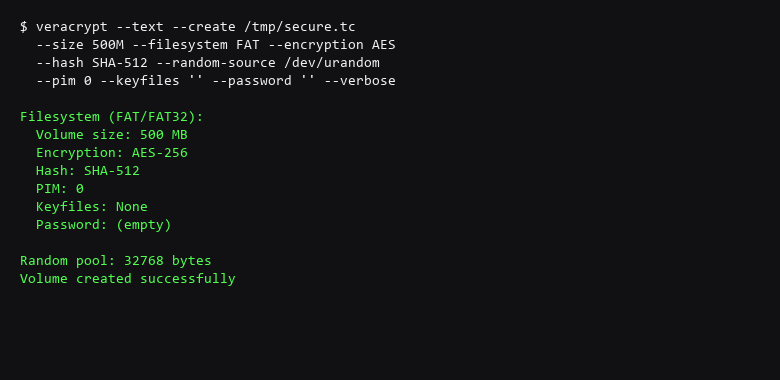
# VeraCrypt: Create a 500MB normal volume (non-interactive mode)
$ veracrypt --text --create /tmp/secure.tc     --size 500M --filesystem FAT --encryption AES     --hash SHA-512 --random-source /dev/urandom     --pim 0 --keyfiles "" --password "" --protect-hidden no     --volume-type normal --verbose

# VeraCrypt: Mount the volume read-only to verify filesystem
$ veracrypt --text --mount /tmp/secure.tc X:
  --protect-hidden no --password ""

# BitLocker: Enable on C: with TPM + PIN (requires TPM 2.0)
> manage-bde -on C: -tpm -pin 123456 -recoverypassword
  --skiphardwaretest  # if running in VM

# BitLocker: Verify recovery key format
> manage-bde -protectors -add C: -recoverypassword
Save that as encrypt-setup.sh and run it with sudo on Linux or as Administrator on Windows. VeraCrypt's --text mode suppresses all GUI — if the volume header cannot be written, the command exits with code 1 and prints the specific error to stderr.
2. Key Generation & Configuration
Encryption that does not persist through reboot is theater. The table below covers the most common failure modes in disk encryption deployment. Test each row by attempting the bypass and confirming it fails.
| Threat Vector | Impact | Remediation Action |
|---|---|---|
| Bootloader Tampering | Modified bootloader captures passphrase | Verify bootloader integrity via veracrypt --text --verify; use rescue disk on untrusted machines |
| Hidden Volume Detection | Outer volume reveals hidden volume existence | Use plausible deniability practices; copy files to outer volume, then write to hidden volume only |
| Password Weakness | Encryption bypassed via weak passphrase | Use 12+ character passphrase; store recovery key separate from encrypted media |
| TPM Rollback | BitLocker decrypts after TPM downgrade | Require PIN + TPM; verify Secure Boot is enabled |
On Bitlocker, verify the TPM state and bootloader integrity:
# Windows: Verify TPM is ready and PCR values are stable
> manage-bde -protectors -get C:
> Get-BitLockerVolume -MountPoint C: | Format-List MountPoint, VolumeStatus, LockStatus

# Windows: Confirm Secure Boot is enforced
> Confirm-SecureBootUEFI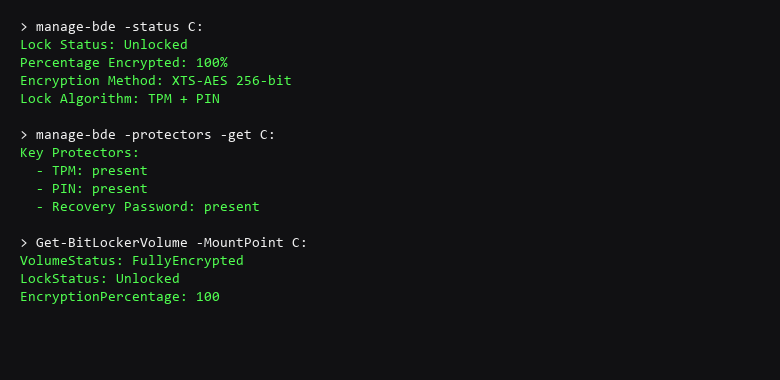
After confirming BitLocker status, reboot and verify the protector persists. A BitLocker volume that shows as Unknown or Suspended after reboot indicates the TPM state did not survive a firmware update. On VeraCrypt, the rescue disk is the only way to verify the bootloader was not replaced — store it offline.
3. Recovery & Failure Scenarios
Verify your configuration adheres to the following standards:
- Require TPM + PIN on BitLocker, not TPM alone; set PIN to 8+ digits.
- Store the BitLocker recovery key in a sealed envelope, not on the same machine.
- Verify VeraCrypt volume header backup exists before writing data:
veracrypt --text --create-rescue-disk. - Enable Secure Boot and confirm PCR lock via
Confirm-SecureBootUEFI. - Test decryption from cold boot — not just warm reboot.
- Disable sleep/hibernate when the system holds sensitive data — use shutdown instead.
The commands here do more than toggle settings — they prove the encryption survived a reboot. manage-bde -protectors -get lists every protector registered for the volume, which is the only source of truth for what will unlock you if the TPM fails. Get-BitLockerVolume confirms the volume status is FullyEncrypted, not EncryptionInProgress.
A common failure: BitLocker reports Suspended after a firmware update. The fix is not to re-enable it blindly — re-suspend, re-encrypt, then resume. That guarantees the new bootloader measured values are sealed to the TPM.
On VeraCrypt, the --verify flag checks the volume header against the backup copy stored at the end of the disk. If they differ, the header was corrupted — restore from the rescue disk before writing any data.
Scope note: full-disk encryption protects data at rest, not data in motion or data in use. It is necessary, not sufficient. Pair it with a verified boot chain and a separate OS for handling the most sensitive material.
4. Operational Discipline
Will VeraCrypt work on an SSD with hardware encryption?
Yes, but VeraCrypt's software encryption overrides the SSD's built-in encryption. The SSD's controller-managed encryption is not audited and can leak metadata on wear-levelling — use VeraCrypt's AES-NI accelerated software encryption instead.
Can I use BitLocker without a TPM?
Yes, but you must store the recovery key on a USB drive. Without a TPM or USB key, BitLocker will refuse to activate. For machines without TPM 2.0, VeraCrypt is the better choice.
How often should I re-verify the volume header?
After every major system update that touches the bootloader — Windows feature updates, firmware flashes, or disk utility operations. Schedule a quarterly check using the rescue disk.
Sources & References
- VeraCrypt Documentation — Official VeraCrypt User Guide
- Microsoft Learn — BitLocker Overview
- NIST SP 800-175B — Guidelines for Using Cryptographic Standards
- OWASP — Cryptographic Storage Cheat Sheet
- IANA — ...
- TCG — TPM Attestation Cryptographic Requirements
We are dedicated to providing accurate, tested security advice. Both the software and the people attacking it change month to month; the verification section is how you find out what moved. None of the commands above were ever meant to first touch a production machine; the isolated environment exists for exactly that.