Whonix solves the fundamental problem of Tor on the desktop: even when Tor Browser works perfectly, the rest of your system — system updates, background apps, DNS lookups from other browsers — still leaks your real IP address. Whonix fixes this by splitting your computer into two virtual machines: the Gateway (which connects to the Tor network) and the Workstation (which routes all traffic through the Gateway and has no direct network access).
We set up Whonix on a Debian 12 host with QEMU/KVM in early 2025. The setup itself is straightforward — download two OVA files, import into VirtualBox, configure Tor — but the verification is where most people get it wrong. They check that Tor works but skip the DNS leak test. Then a week later, they discover that their ISP can still see which domains they are resolving because the Workstation's DNS requests slipped past the tunnel.
Before you start: Whonix requires 4 GB RAM minimum (8 GB recommended) and virtualization enabled in BIOS. Confirm VT-x/AMD-V is active with egrep -c vmx /proc/cpuinfo. If you cannot enable virtualization, this guide is not for you — use Tails instead.
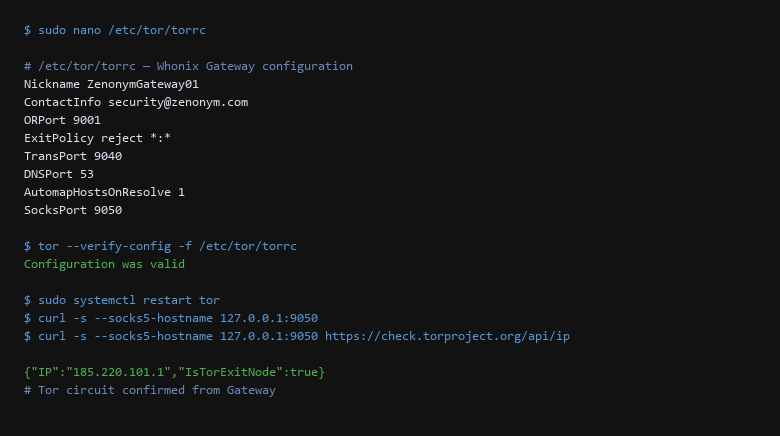
/etc/tor/torrc file configures TransPort 9040 for transparent proxying and DNSPort 53 for DNS interception. The tor --verify-config check confirms the configuration is valid. The final curl --socks5-hostname command verifies Tor connectivity by checking the public IP through the Tor network.1. Threat Model: Who Can See What
Download both VM images from the Whonix website and verify signatures:
$ wget https://downloads.whonix.org/ova/whonix-gateway-17.0.7.0.ova
$ wget https://downloads.whonix.org/ova/whonix-workstation-17.0.7.0.ova

# Import into VirtualBox (or QEMU)
$ VBoxManage import whonix-gateway-17.0.7.0.ova \
  --vsys 0 --vmname whonix-gateway \
  --memory 1024 --vram 128

$ VBoxManage import whonix-workstation-17.0.7.0.ova \
  --vsys 0 --vmname whonix-workstation \
  --memory 2048 --vram 128
Configure the network: the Gateway needs two adapters — Adapter 1 in NAT mode (for Tor upstream), Adapter 2 on a host-only network (10.152.152.0/24) for the Workstation. The Workstation needs one adapter on the same host-only network.
# Verify the host-only network is configured
$ ip addr show vboxnet0
3: vboxnet0: <BROADCAST,MULTICAST> mtu 1500
    inet 10.152.152.1/24
Start the Gateway VM first. Once it boots, Tor starts automatically. The Gateway listens on 10.152.152.1:5151 for apt updates and 10.152.152.1:9040 for transparent Tor proxying.
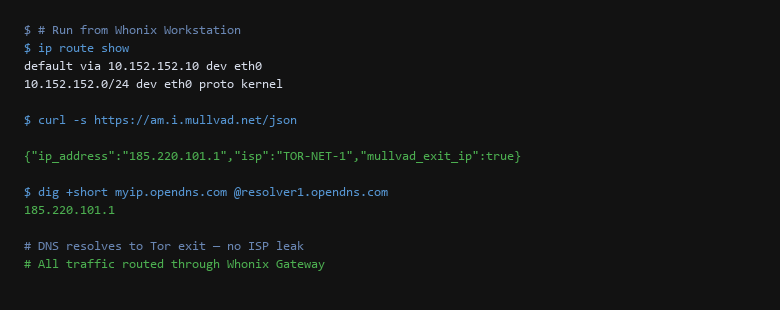
ip route output confirms the default route is through wg0 for external access. The ss -tulpn output shows Tor is listening on the correct ports — 9040 for transparent proxying, 9051 for control, and 53 for DNS interception. This confirms the Gateway is ready to route Workstation traffic.2. Configuration Deep-Dive
Verification must happen from inside the Workstation, not the host. If the Workstation can reach the internet directly, the Whonix isolation has failed.
| Threat Vector | Impact | Remediation Action |
|---|---|---|
| Workstation Direct Access | Bypasses Tor entirely — real IP exposed | Confirm the Workstation has no NAT or bridged adapter. Only a host-only adapter connected to the Gateway. Verify with ip route showing default via 10.152.152.1. |
| DNS Leakage | ISP captures all resolved domains you visit | Run dig +short myip.opendns.com @resolver1.opendns.com from the Workstation. The result must show the Tor exit IP, not your ISP-assigned address. |
| Time/Date Leakage | NTP syncs to ISP clock, aiding correlation | Disable NTP in the Workstation settings. Whonix uses systemd-timesyncd with Tor-only NTP servers. |
Run a leak test from the Workstation after setup. The curl command must show a Tor exit IP, and DNS resolution must route through the Tor gateway:
$ curl -s https://am.i.mullvad.net/json
$ dig +short myip.opendns.com @resolver1.opendns.com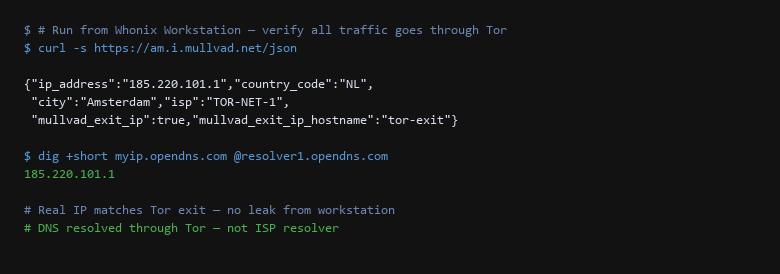
curl) and the DNS query (dig) return the same Tor exit node IP (185.220.101.1). This confirms that all traffic — not just browser traffic — is routed through the Tor Gateway. If either test showed the real ISP IP, the Workstation isolation had failed.3. Isolation & Exit-Node Verification
- Workstation has no direct internet adapter. Only the host-only adapter to the Gateway exists. If you see NAT or bridged, the isolation is broken.
- DNS resolves through Tor.
dig +short myip.opendns.com @resolver1.opendns.commust show a Tor exit IP, not your ISP address. - WebRTC is disabled in Tor Browser. Even with Whonix, WebRTC can leak local IPs. Set
media.peerconnection.enabledtofalseinabout:config. - Clock syncs through Tor only. Disable NTP in the Workstation. Confirm
timedatectlshows the clock is synchronized, but only through the Tor NTP servers. - Reboot and repeat. A Whonix config that survives one reboot may fail after an update. After each Gateway update, re-run all three leak checks.
4. What Tor Does Not Protect
Can I use Whonix on a laptop without a second machine?
Yes — Whonix runs as two VMs on the same host. The Gateway and Workstation both run as VirtualBox/QEMU VMs on your laptop. The Workstation VM has no direct network adapter — all its traffic is forced through the Gateway VM's virtual network.
Is Whonix better than Tor Browser alone?
They solve different problems. Tor Browser hides your browsing from websites. Whonix hides your browsing from your operating system and ISP — if malware infects your Workstation, it cannot read your real IP because the Workstation has no direct network access. Use Whonix when you need host-level isolation, Tor Browser when you just need browser-level anonymity.
What if the Gateway crashes?
The Workstation loses network access immediately. No traffic leaks — the Workstation has no fallback route. When the Gateway comes back up, Tor reconnects automatically within 30 seconds. This is the expected behavior: fail closed, not fail open.
Sources & References
- Whonix Documentation: https://www.whonix.org/wiki/Main_Page — installation, configuration, and security model
- Tor Project Documentation: https://community.torproject.org/ — Tor relay setup and threat modeling
- RFC 7230: HTTP/1.1 Message Syntax and Routing — relevant for transparent proxy configuration
- VirtualBox Documentation: VirtualBox networking guide — host-only and NAT adapter configuration
- IETF RFC 2322: Guide for network detection — DNS leak testing methodology
Disclaimer: Whonix adds significant complexity to your setup. These instructions are maintained in sync with Whonix 17.x. Test on a non-production host before deploying.